
Use the ACCOUNT section of our website to log in to access your online garage, your rides, view past orders and manage your shipping and billing addresses. Updates to your account can be made by logging in to any of our brand websites. Creating an account is not required to make online purchases or place orders.
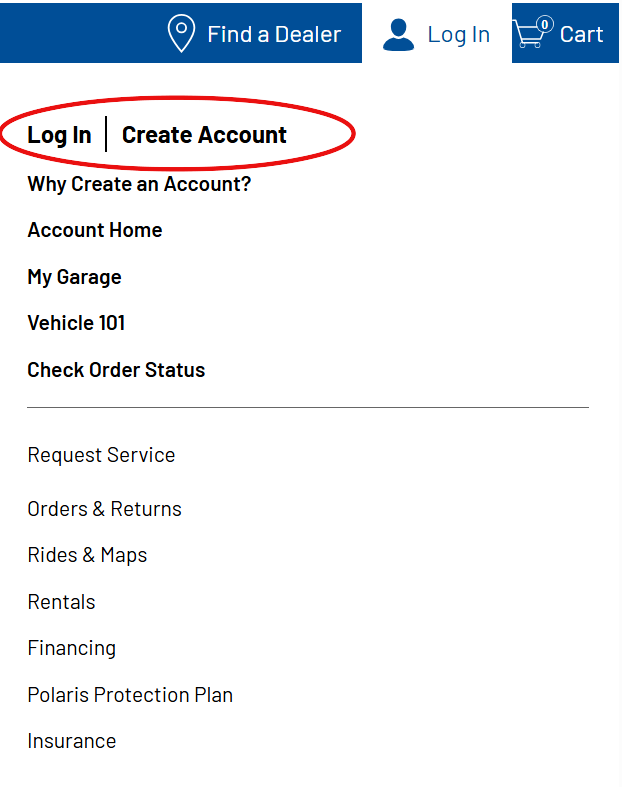
Access your account in the upper-right-hand corner of the website. Click on the drop-down menu to log in or create an account.
Contact Info
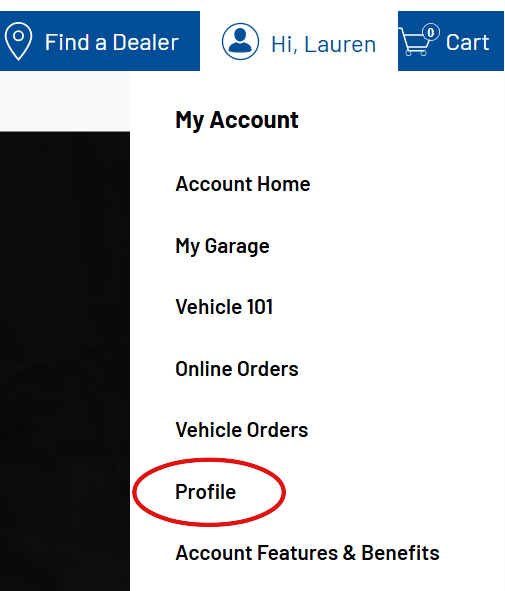
From the drop-down menu, select the PROFILE option to edit your account profile.
This will take you to the Profile page, shown below.
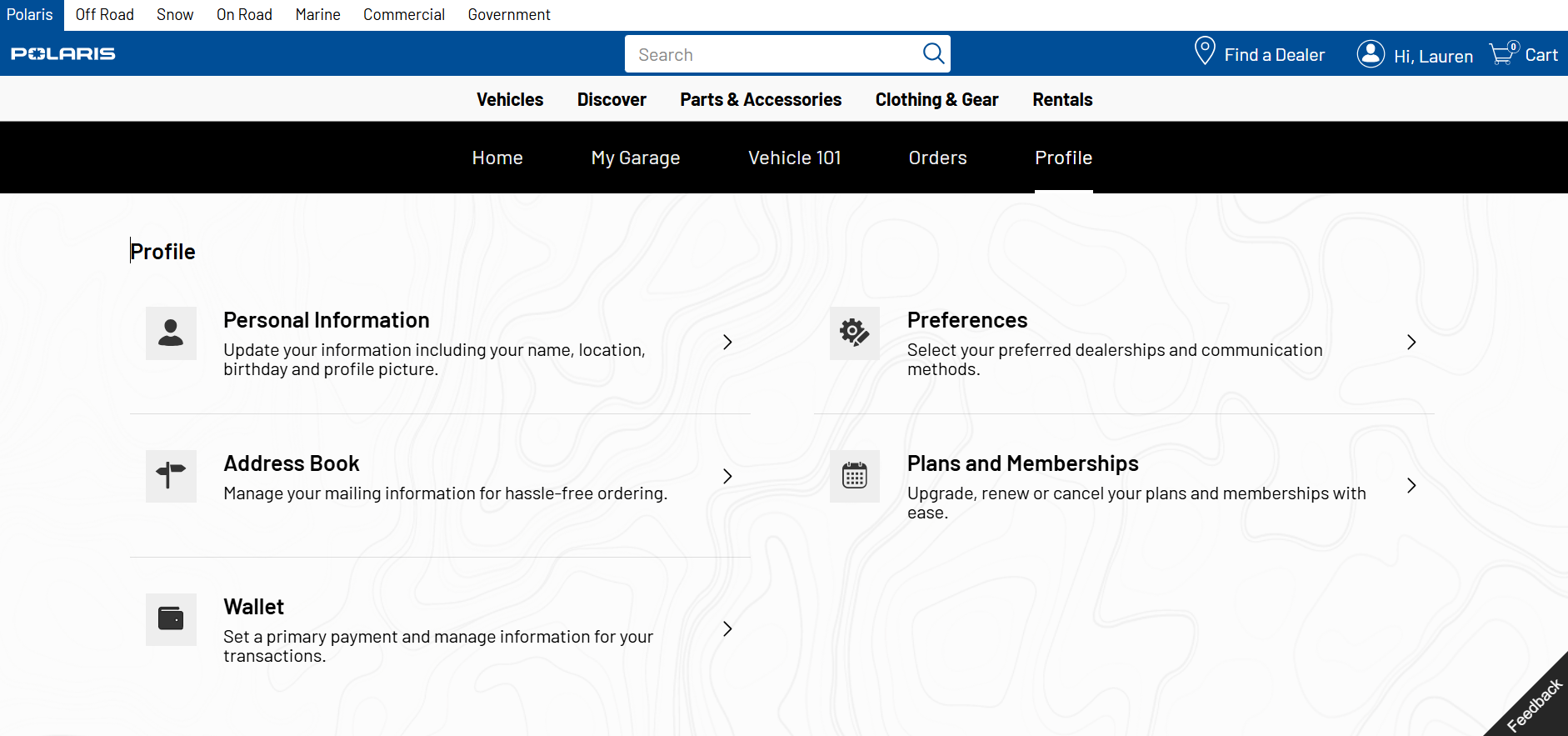
Click on PERSONAL INFORMATION to update your name, location, birthday and profile picture.
Also under PERSONAL INFORMATION, click RESET PASSWORD to change your password while you are logged IN. To reset your password while you are logged OUT, navigate to 'Password Reset' at the end of this article.
Under ADDRESS BOOK, click ADD ADDRESS to add an address or EDIT to change your saved addresses. Note: you cannot delete an address if it is set as your preferred shipping or billing address. First enter a new address and set it as your preferred address and then delete the old one.
Important: You cannot change the email address for your account. If your email address has changed, you must create a new account.
Updating Your Preferred Dealership
1. Log in to your account on the RIDE COMMAND site. The visuals below are from the Polaris RIDE COMMAND site.
2. Click on the MAP tab.

3. Click on the map layers banner under the main navigation tabs.
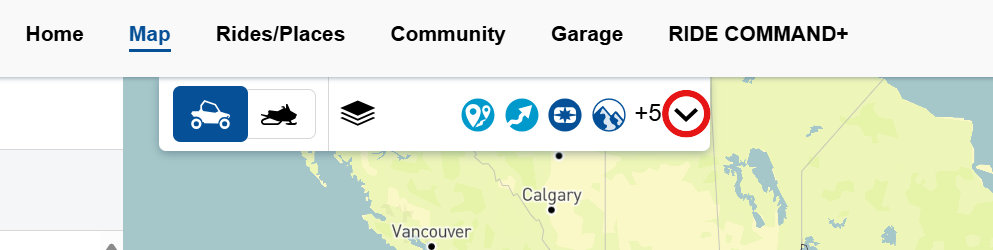
4. To see dealers in your area, toggle the switch next to "Dealers" to ON. Note: When the switch is shown filled in, the switch is on and will show on the map. You also can search for your preferred dealership directly in the search bar.
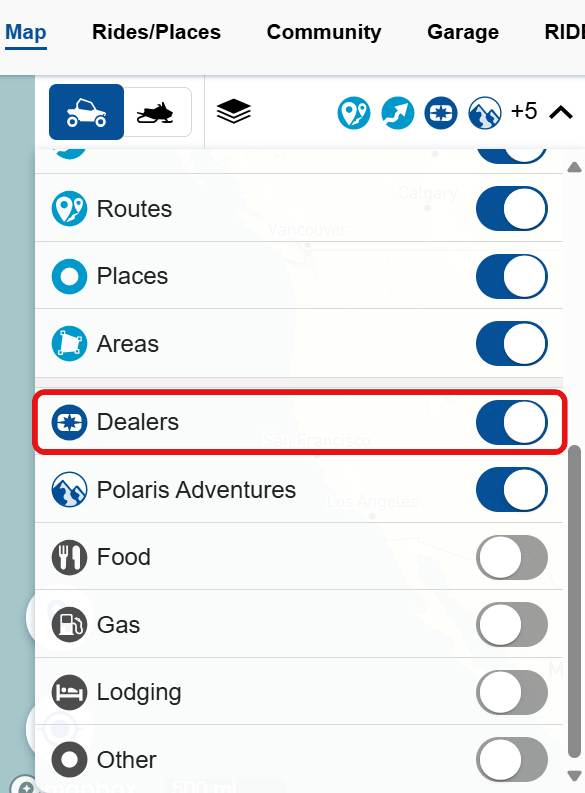
5. An icon will show up on the map, marking your dealer’s location. Click on this icon.
6. Press SAVE DEALER under your dealer’s contact information.
7. Navigate to the GARAGE tab. You will see your new dealer has been saved. This dealer will also show up as your saved dealer in your account on our websites.
Password Reset
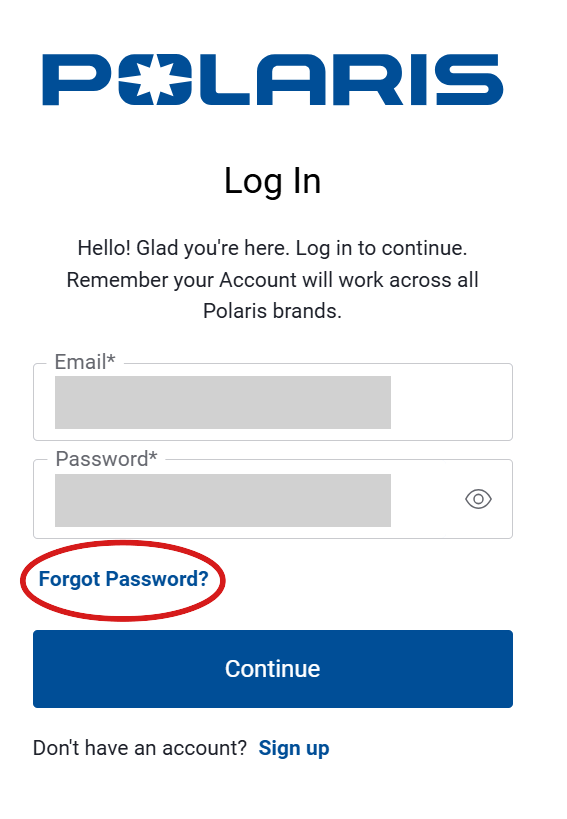
If you are logged OUT and need to reset your password, select FORGOT PASSWORD at the account login screen. You will be redirected to enter your email address and new password. You will then receive an email with directions on how to complete your password change.
Unless noted, trademarks are the property of Polaris Industries Inc.
© 2025 Polaris Industries Inc.

